
Password AutoFill for Shared Mobile Devices
Imprivata Mobile Access Management’s solution for simplifying password entry on shared devices

Overview
Imprivata acquired a startup called GroundControl, which specialized in enterprise-owned mobile devices that are used and shared by employees across an organization, as opposed to dedicated single-user devices. A hospital, for example, may own a fleet of 1000 iPhones which are shared by nurses and clinicians throughout the organization.
Shared-device environments save organizations an average of $1.1 million annually, as compared to organizations in which mobile devices are individually allocated. This is primarily due to increased efficiency, and a reduction in device loss and theft.
Challenge
In shared-use environments, it’s difficult to provide the personalized and consistent user experience that employees expect when using a device, without compromising privacy or productivity. With long usernames and complex passwords now the norm, accessing any app on a shared device requires a significant amount of manual entry for clinicians, who are often pressed for time in high-stakes healthcare environments.
How can we make the experience of using a shared device as efficient and seamless for users as if they were using their own personal device?
Goals
Introduce an enterprise password autofill capability for shared mobile devices. This will:
Enable users of shared devices to quickly access mobile apps via a secure password autofill functionality
Eliminate the need for manual entry of credentials
Users
The target users are nurses starting their shifts at a hospital.
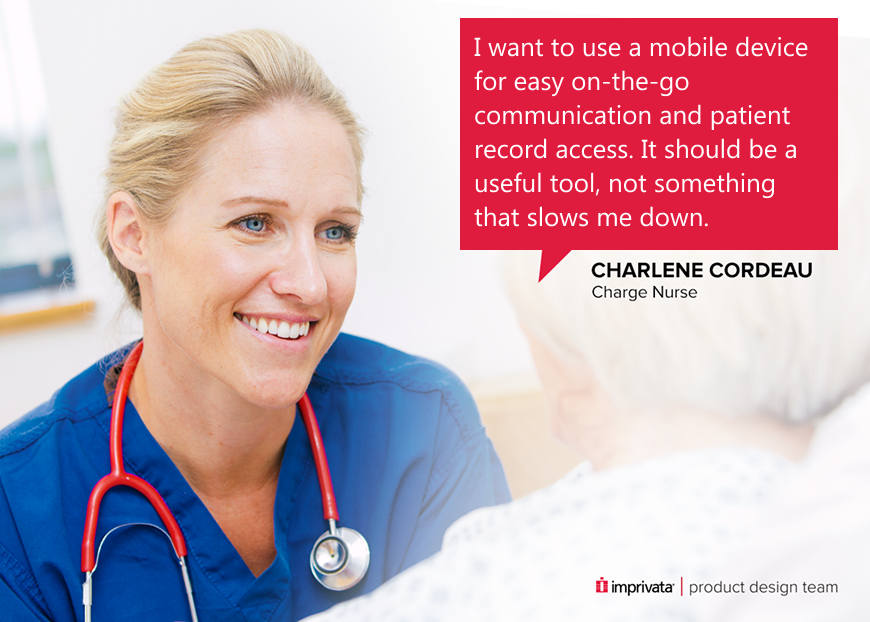
Persona: Nurse Charlene Cordeau
Charlene Cordeau is the charge nurse on Maguire Hospital’s surgical floor. She takes a “hands-on” approach with her patients and nurses. Charlene appreciates the benefits that technology brings to communication, but gets frustrated in dealing with technology issues at the expense of patients and staff.
She wants the device checkout process to be quick so she can start caring for patients as soon as possible.
Project Details
My role: Lead Product Designer
Team: Two Product Managers, Scrum Master, Engineering Manager, two engineering teams - one for mobile UI, one for backend
The team was spread out geographically between Waltham, MA, the New York area, Ukraine, and a few individuals in other parts of the USA
Methodologies: User flows iteration, wireframes, prototypes, design iteration
Tools: Miro, Figma
Industry: Healthcare, Security
Impact
It can be laborious for users to manually enter login credentials on mobile devices. It’s also challenging for them to remember passwords for multiple apps when they are using devices that they don’t own. The enterprise Password AutoFill feature enables users to securely log in to all the apps on a shared device, while saving them the hassle of remembering passwords and the time spent manually typing them in. It reduces password fatigue, minimizes help desk calls, and enhances security.
Password Autofill also improves efficiency by reducing the number of taps needed to enter a username and password from 30+ taps to just 3 taps.
Background
Devices are locked and stored in docking station
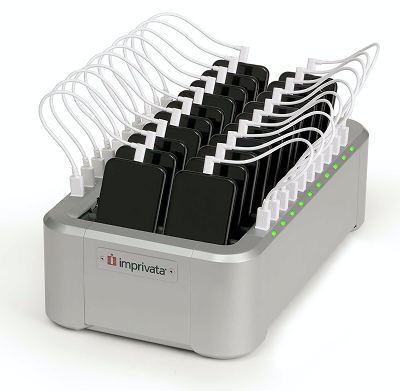
Devices are typically stored in docking stations, also known as charging hubs, as pictured. Each device remains locked and charging in the docking station until it is checked out by a user. When devices are checked back in, they are returned to a docking station and locked again.
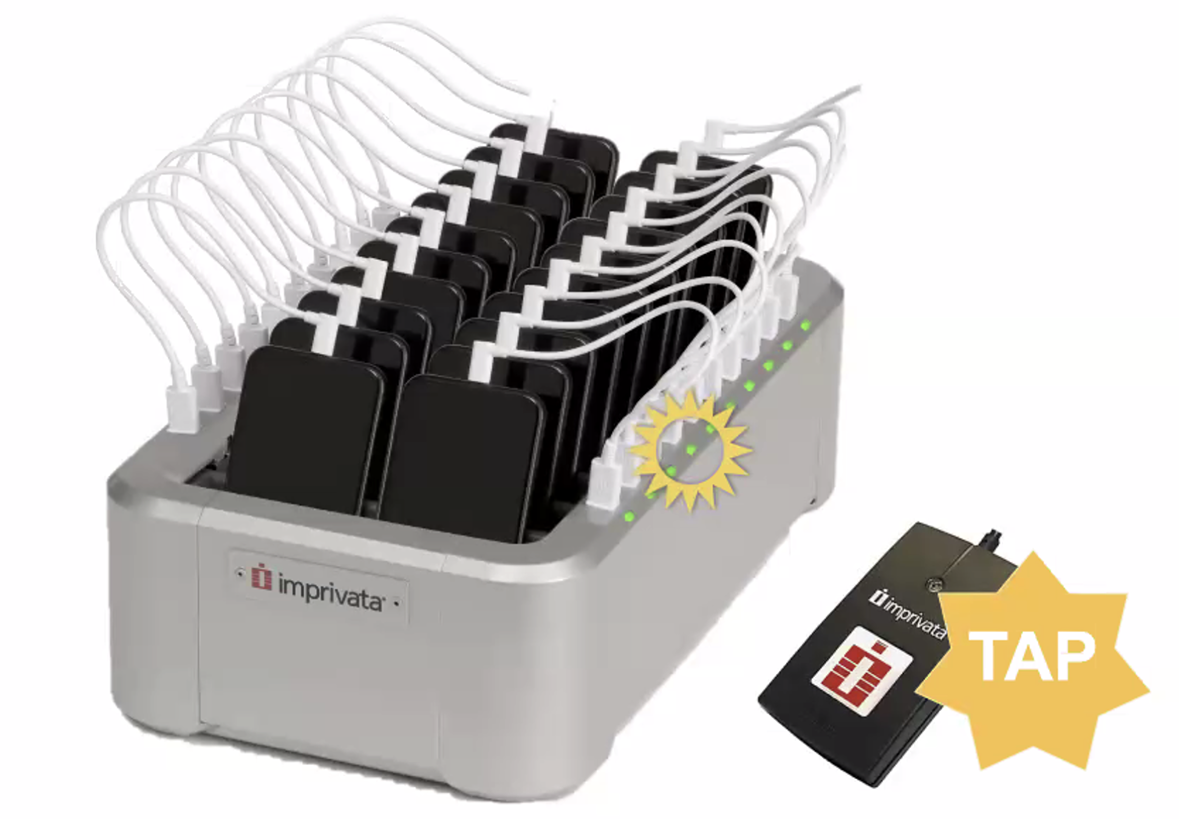
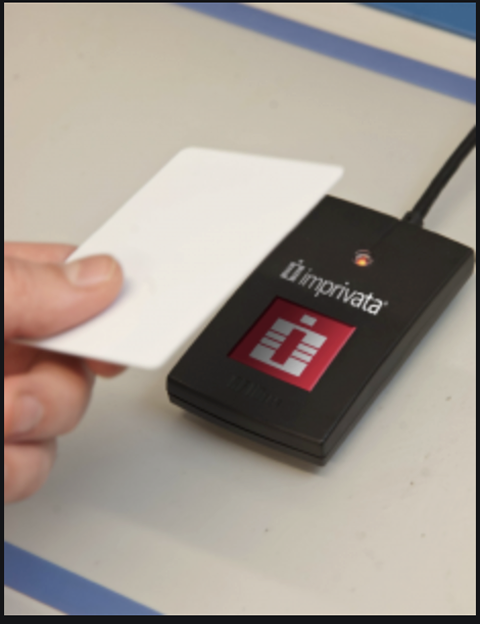
A device can be checked out by tapping a badge against a badge reader attached to the docking station. When a device is checked out, it will unlock, and the device screen will change from a locked to an unlocked state.
The light beside the checked-out phone in the docking station will also flash to indicate to the user which phone to take.
Imprivata’s Locker App controls whether devices are locked or unlocked
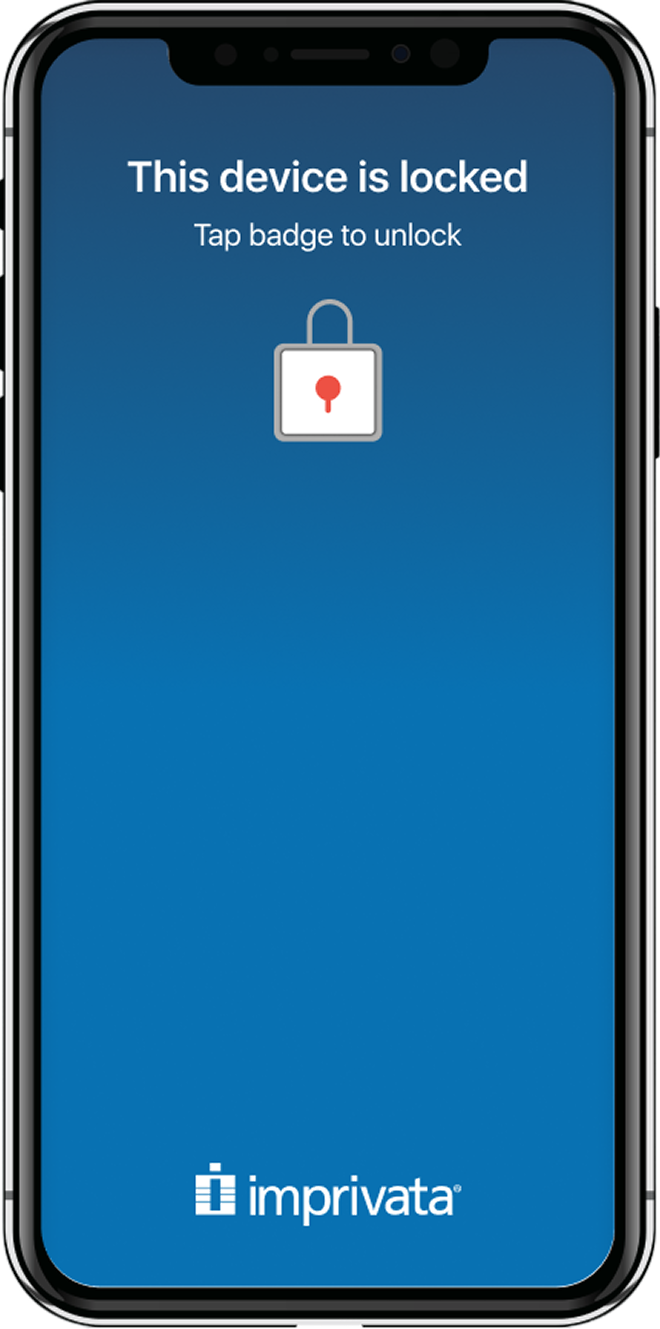
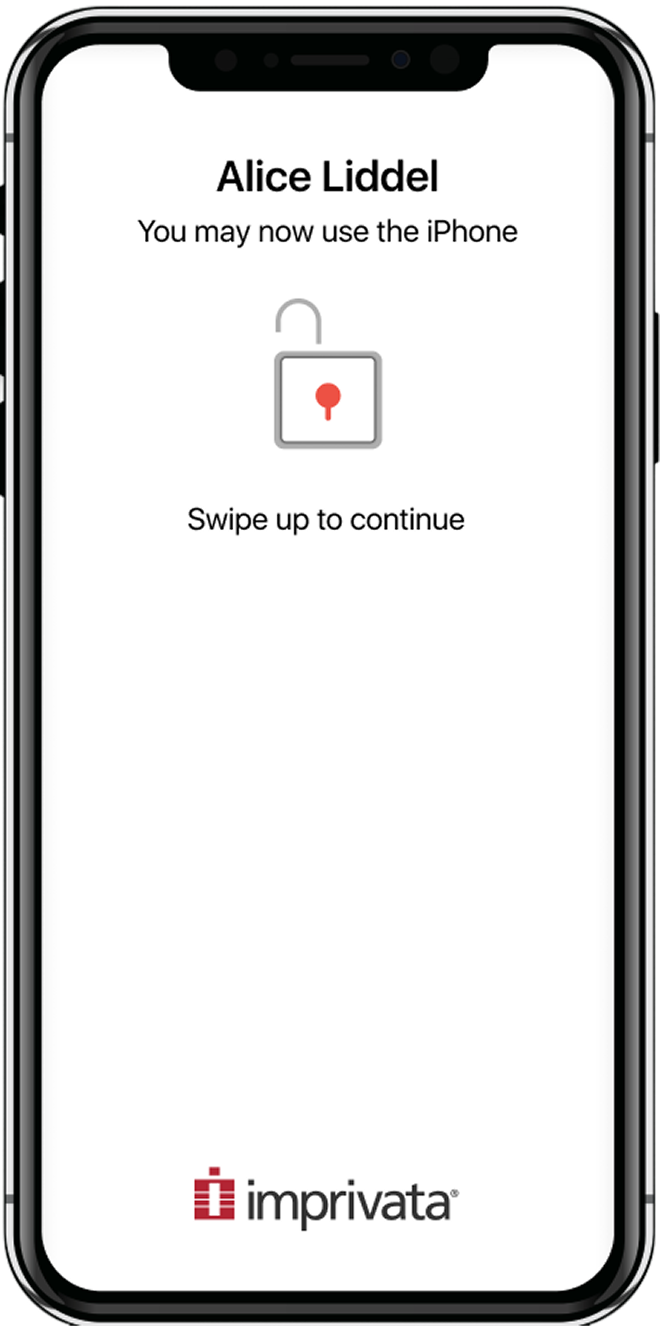
Devices can be locked or unlocked - this state is controlled by the Imprivata Locker app.
Locked devices have a dark blue background. Once a user taps a badge to check out a device, the device’s background color changes to white to indicate that it is unlocked. It also displays the user’s name at the top to let the user know which device to remove from the docking station.
Initial Workflow Definition for 2FA
One of my first steps was to understand and define the workflow for checking out a device and entering a second factor of authentication (2FA) in order to use Password AutoFill. Pictured is the initial workflow I created for this feature.
When I first designed this workflow, the feature hadn’t yet been named Password AutoFill, and we were referring to it as single sign-on (SSO).
Workflow options
When should the 2FA prompt appear?
The Password Autofill feature on iOS works via integration with Imprivata OneSign, Imprivata’s enterprise single sign-on (SSO) platform. Password Autofill makes a user’s login credentials available for most apps and websites on the phone, without the user having to remember them or manually enter them.
But in order for Password AutoFill to work, the user has to be prompted to enter a second factor of authentication - either a PIN or a password. (The first factor was the badge tap to check out a device). This second factor links the user’s checked out device with their Imprivata OneSign profile.
The question arose of when in the device check out workflow to prompt the user for the second factor. There were two options, illustrated here.
Option 1: Prompt for 2FA immediately after device check out
Option 2: Prompt for 2FA only after opening an app or website requiring login
The product managers, engineering leads, and I discussed the pros and cons of each option. Prompting immediately after device checkout (option 1) meant that the initial check out workflow would be a bit longer. But after checkout, the user would be all set, and could immediately use Password Autofill upon opening any app.
Prompting for the second factor only after the user had opened an app requiring login credentials (option 2) meant that the experience of opening an app for the first time would be a bit different from opening an app subsequent times.
Ultimately we chose option 2: to prompt for the second factor only after the user opens an app requiring login credentials.
Our rationale was that this would save users from having to enter a second factor unnecessarily right after checkout, especially if they didn’t plan to use any apps requiring a login. It was possible that they might not need to use Password Autofill at all for the duration of their device checkout.
Password AutoFill screens
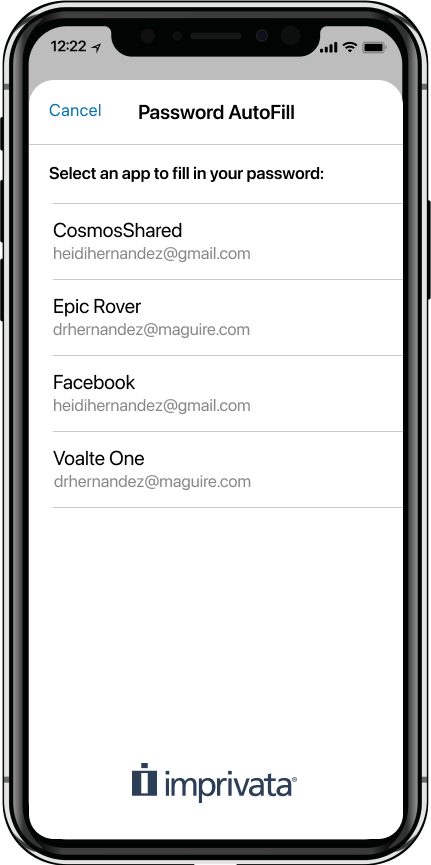
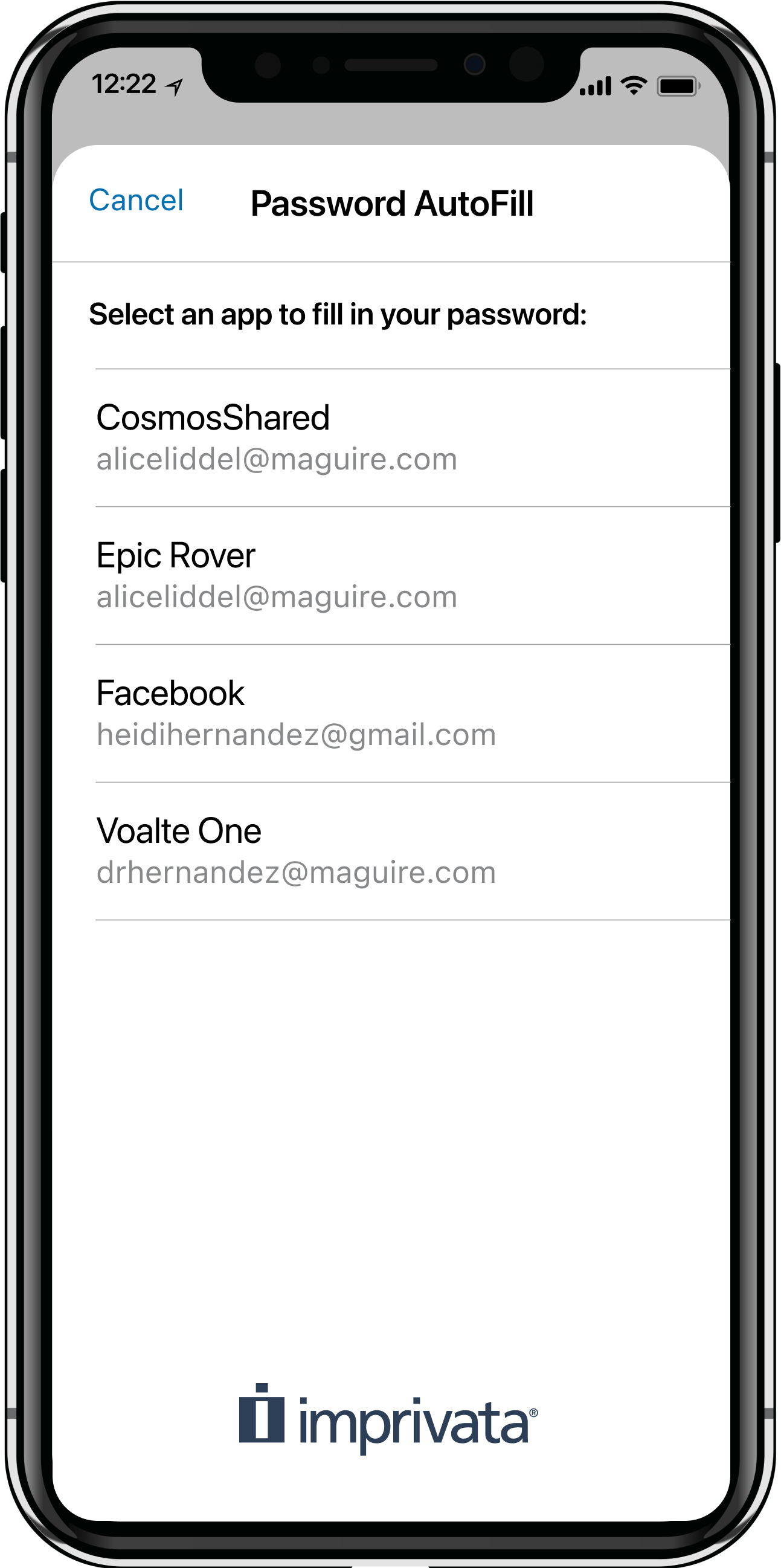
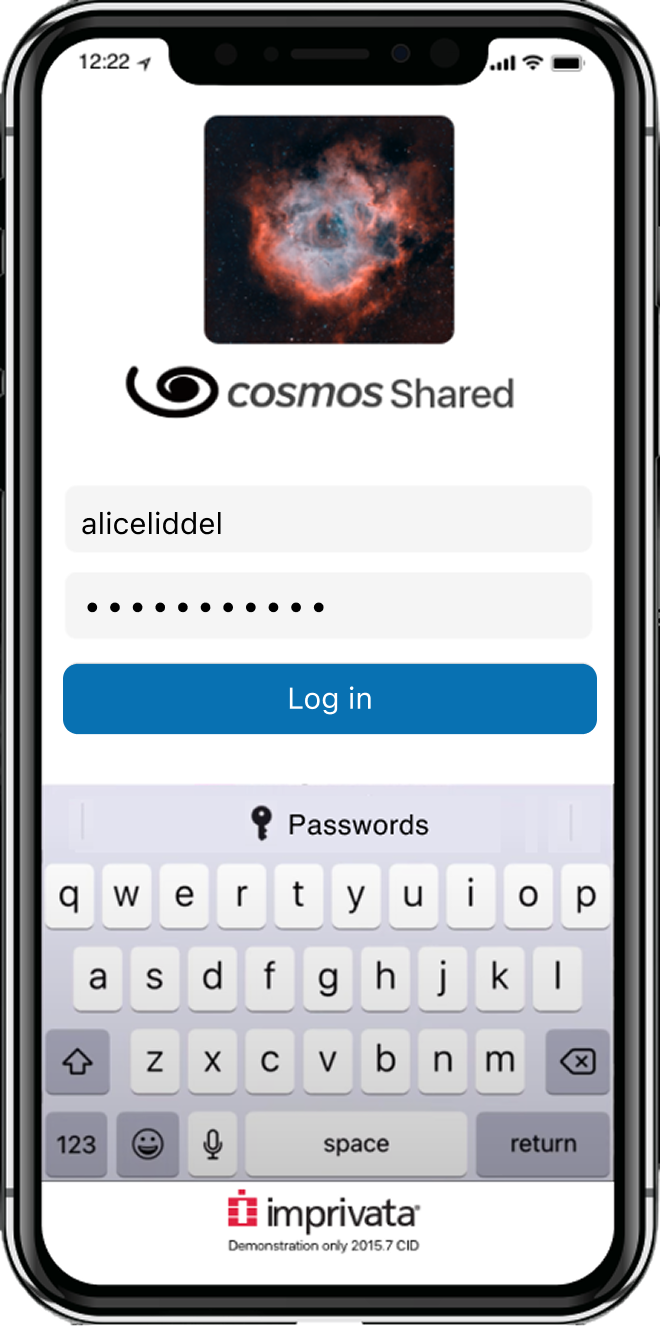
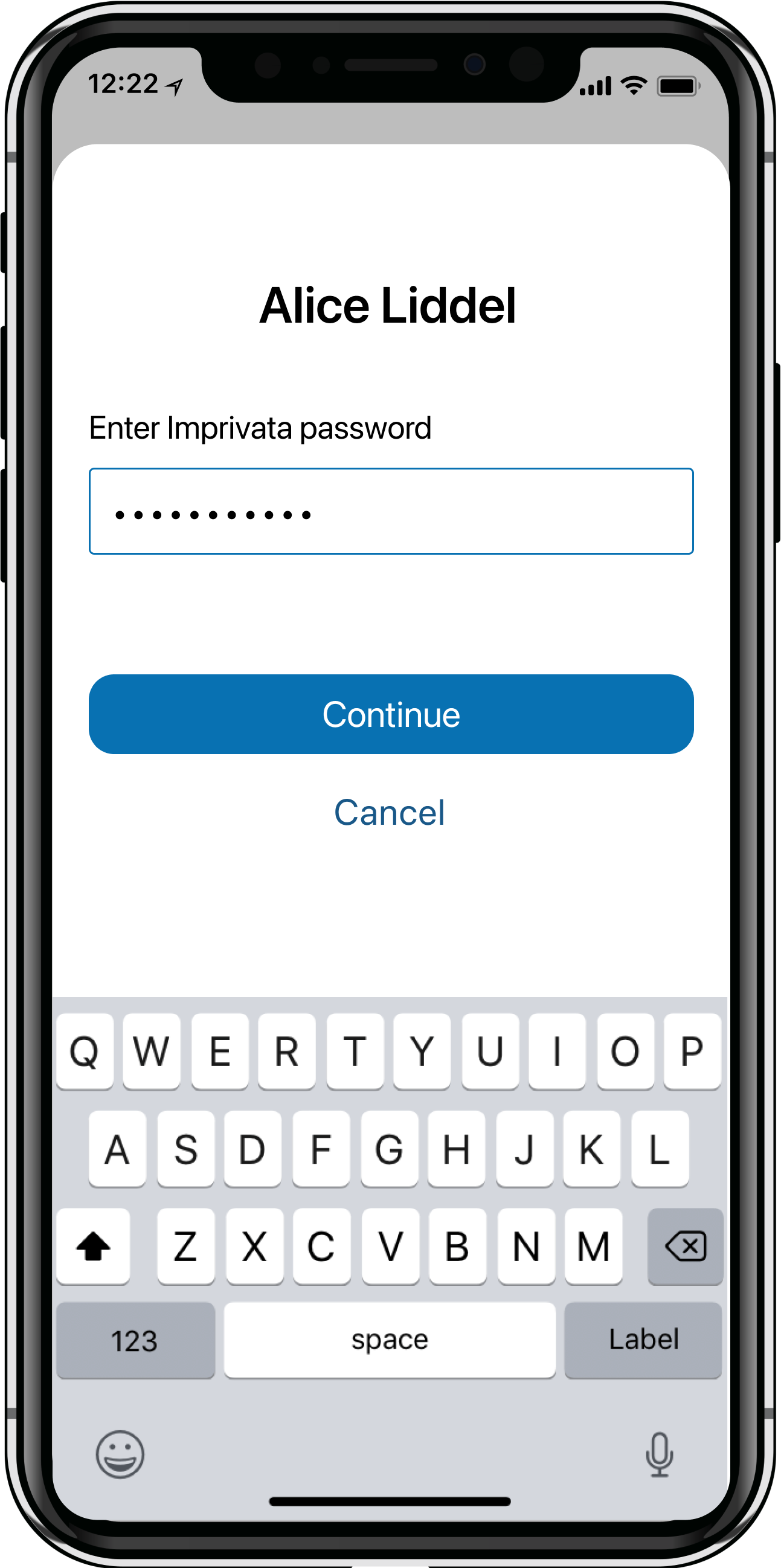
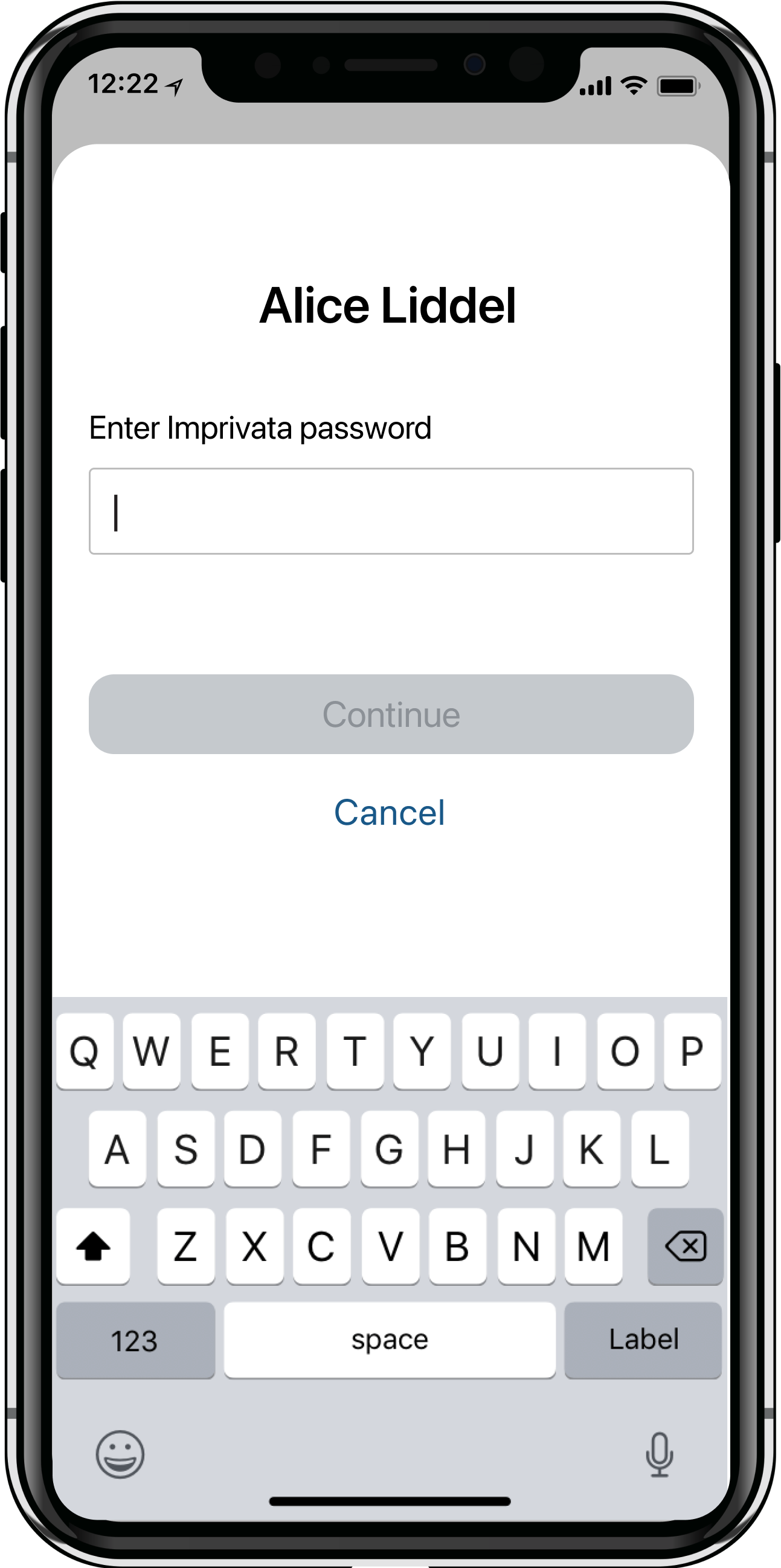
If this is the user’s first time using Password AutoFill after checking out a device, the user will first be prompted to enter a second factor (2nd and 3rd screens) before proceeding to the Password AutoFill screen.
Once on the Password AutoFill screen, the user selects the app they’re trying to log in to. The credentials are then filled in automatically. Now all the user needs to do is press the "Log in” button, and they will be logged in to the app.
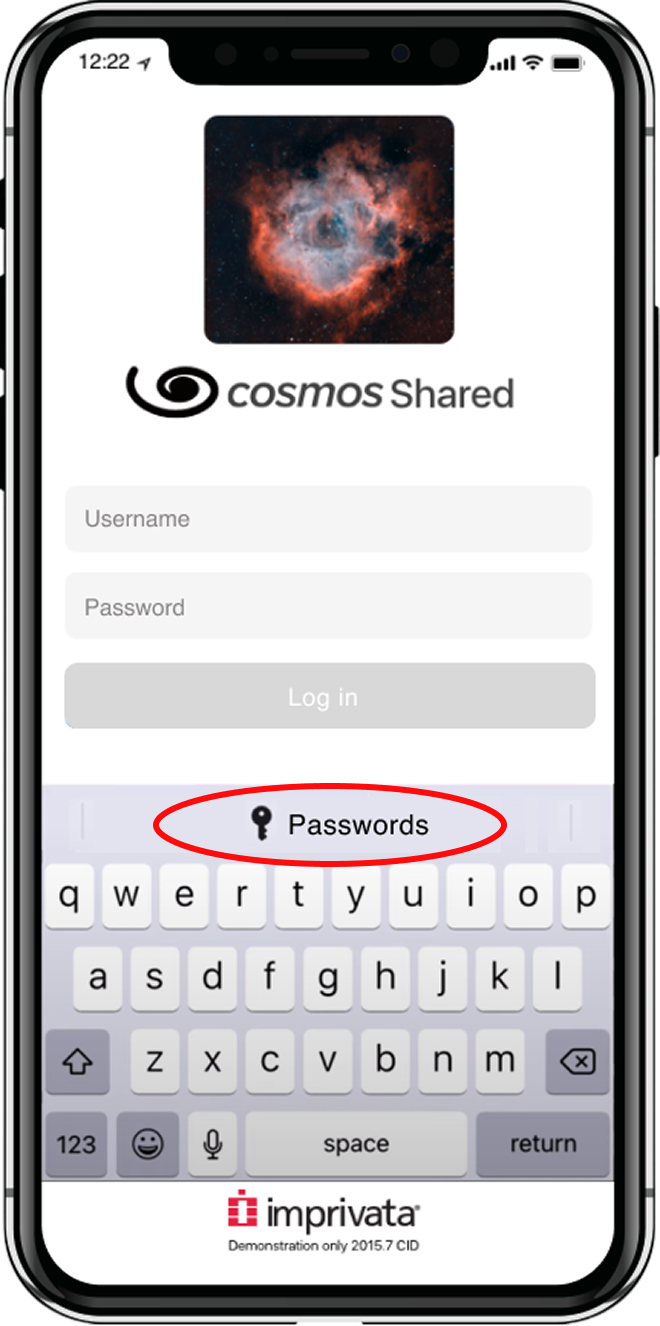
Shown here is the screen progression, starting from when a user first opens an app. Cosmos Shared was an internal app used for testing purposes.
When Password Autofill is set up, a "Passwords” button appears in the iOS QuickType bar above the keyboard (circled here). Tapping this button triggers the Password AutoFill extension screen to open.

Associated Domains
If the app has an associated domain, the Password Autofill process is even quicker.
Associated domains establish a secure association between native apps and web domains, allowing app developers to share credentials or provide features in their apps from the associated websites. It is up to the app developers to create an associated domain by adding a few lines of code.
If there is an associated domain for an app, on the app’s login screen, the button on the iOS QuickType bar shows “password for <associated domain>” followed by the user’s username, instead of just showing a “Passwords” button. If the user clicks this button, their credentials will automatically be filled in. The user is able to skip the step of selecting the app from the Password AutoFill extension screen.
End-to-end Process
Device checkout workflow with Password AutoFill
Shown below is the entire badge tap checkout workflow, including the steps for apps both with and without associated domains.
Demo of Password AutoFill
Inprivata’s marketing team created a brief video demo of the enterprise Password AutoFill feature, which shows the entire process of checking out a device, entering a second factor of authentication, and using Password AutoFill.
Challenges and constraints
Navigating Apple’s platform constraints
One of the most significant challenges on this project was working within the constraints of Apple's native Password AutoFill extension. Because the extension UI is owned and controlled by Apple, the design options were limited to what Apple's framework permitted. I couldn't customize the interface beyond those boundaries. This occasionally created friction, as bugs in Apple's extension UI would surface in the Locker app, requiring the team to open support cases with Apple and waiting on their response before being able to move forward. Navigating this dependency meant building flexibility into our timelines and finding workarounds where possible, while staying aligned with Apple's ecosystem requirements.
Training nurses to use Password AutoFill
Educating users about this feature and how to use it to save time was another challenge that we faced. When the feature was first rolled out, nurses did not know they could hit the “Passwords” button in the iOS QuickType bar in order to autofill their credentials. They needed to be trained on how to use this feature, either by their hospital IT department, or by the nurse manager in their unit.
Some hospitals, in addition to offering training, also printed out instructions for using the feature that were kept at the device checkout stations. Nurses could easily refer to these instructions when checking out a phone. Shown here is an example of the Password AutoFill instructions at a device checkout station that I observed on a site visit at Connecticut Children’s Hospital.
Results
Greater efficiency for users
The Enterprise Password AutoFill feature for shared iPhones was released in August 2021. This new feature adds value for both the end users (nurses), as well as for the larger hospital organizations in which they worked.
For nurses using shared devices, the number of taps needed to log in to a mobile app was reduced from potentially over 30 taps to just 3 taps.
This reduction in taps also represents a time savings: whereas it may have taken 15 seconds to enter credentials without this feature, now it takes just 1 second. When you multiply this by dozens of nurses logging into many apps over the course of a day, the time savings really adds up.
Stronger security for organizations
There are also benefits for hospital’s IT departments. The Enterprise Password AutoFill capability cuts down on IT intervention by reducing the risks often associated with manual authentication - for instance, mistyping or forgetting a password.
Not only that, but because passwords no longer need to be entered manually, customers can easily increase the password complexity without burdening the end users, which results in stronger security.